Exploring Debian 12 with Mate Desktop: A User-Friendly Experience

Debian, one of the oldest and most respected Linux distributions, recently released its newest version – Debian 12 Bookworm. Debian has always been known for its stability, security, and commitment to free software principles. This post will focus on Debian 12 with my favorite desktop environment, Mate, a popular choice for its balance between performance and aesthetics.

The Mate Desktop Environment

Mate is a continuation of the GNOME 2 desktop environment, a classic and straightforward desktop that provides a familiar experience to users. It is lightweight, fast, and ideal for older hardware without compromising essential features. Mate aims to deliver a traditional desktop experience while incorporating modern functionality.

Debian 12 has a well-integrated Mate desktop, providing users with a polished and customizable interface. Although bland when first installed, it offers a wide range of themes, icons, and configuration options, allowing users to tailor the desktop to their liking.

Installation and Setup

Installing Debian 12 with the Mate desktop is a relatively straightforward process. After obtaining the Debian 12 ISO, you can either create a bootable USB drive or burn the ISO to a DVD. Boot from the installation media and follow the on-screen instructions to install Debian 12 with the Mate desktop.

During the installation, you’ll have the option to customize the desktop environment. Choose Mate from the list of available desktops and proceed with the installation. Once installed, you’ll have a functional Debian 12 system with the Mate desktop.

User Interface and Features

Mate desktop in Debian 12 offers a clean and intuitive interface. The traditional layout includes a top panel with a menu, system tray, and clock, reminiscent of classic desktop setups. The bottom panel hosts the window list, quick launchers, and a workspace switcher.

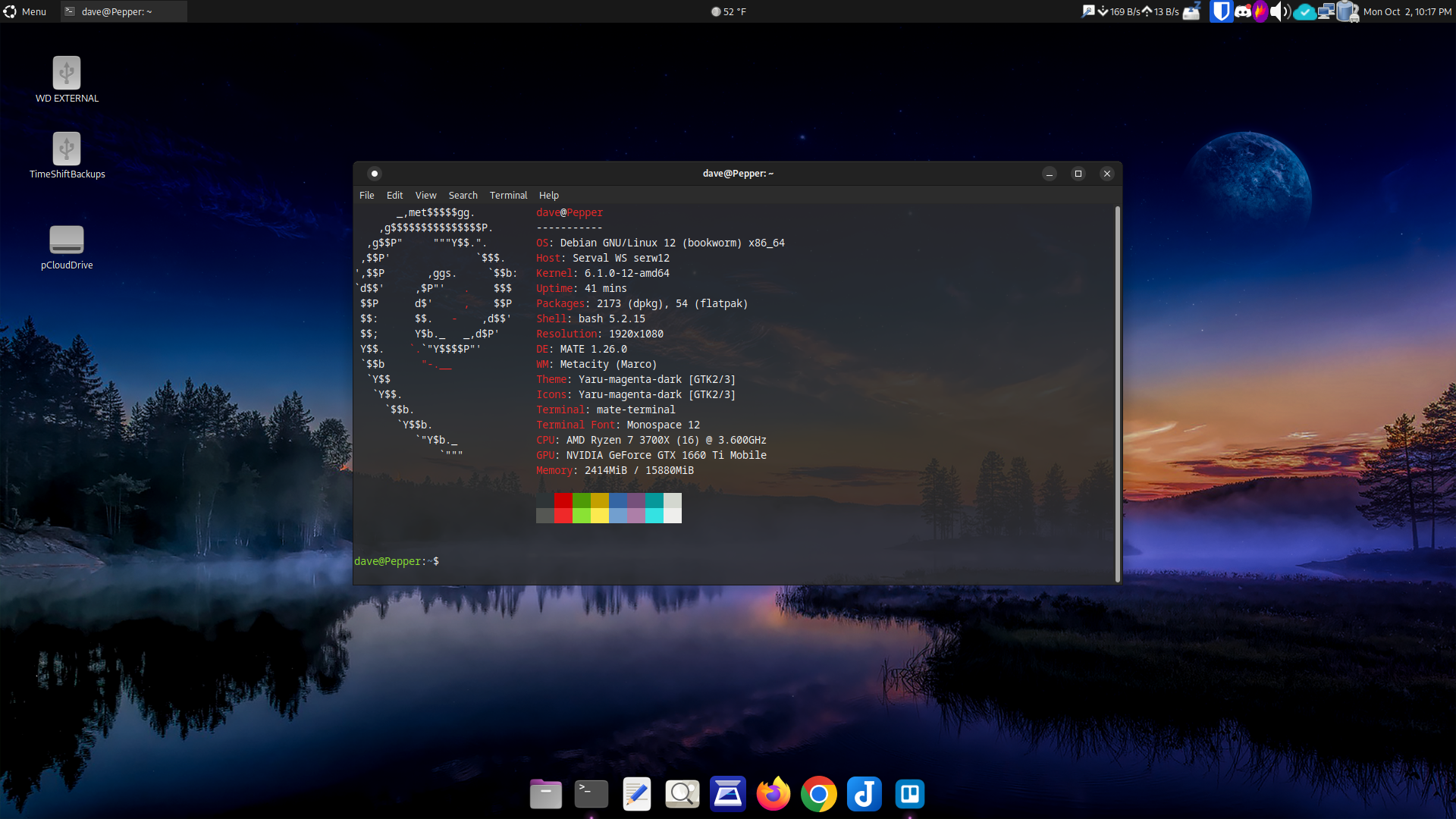
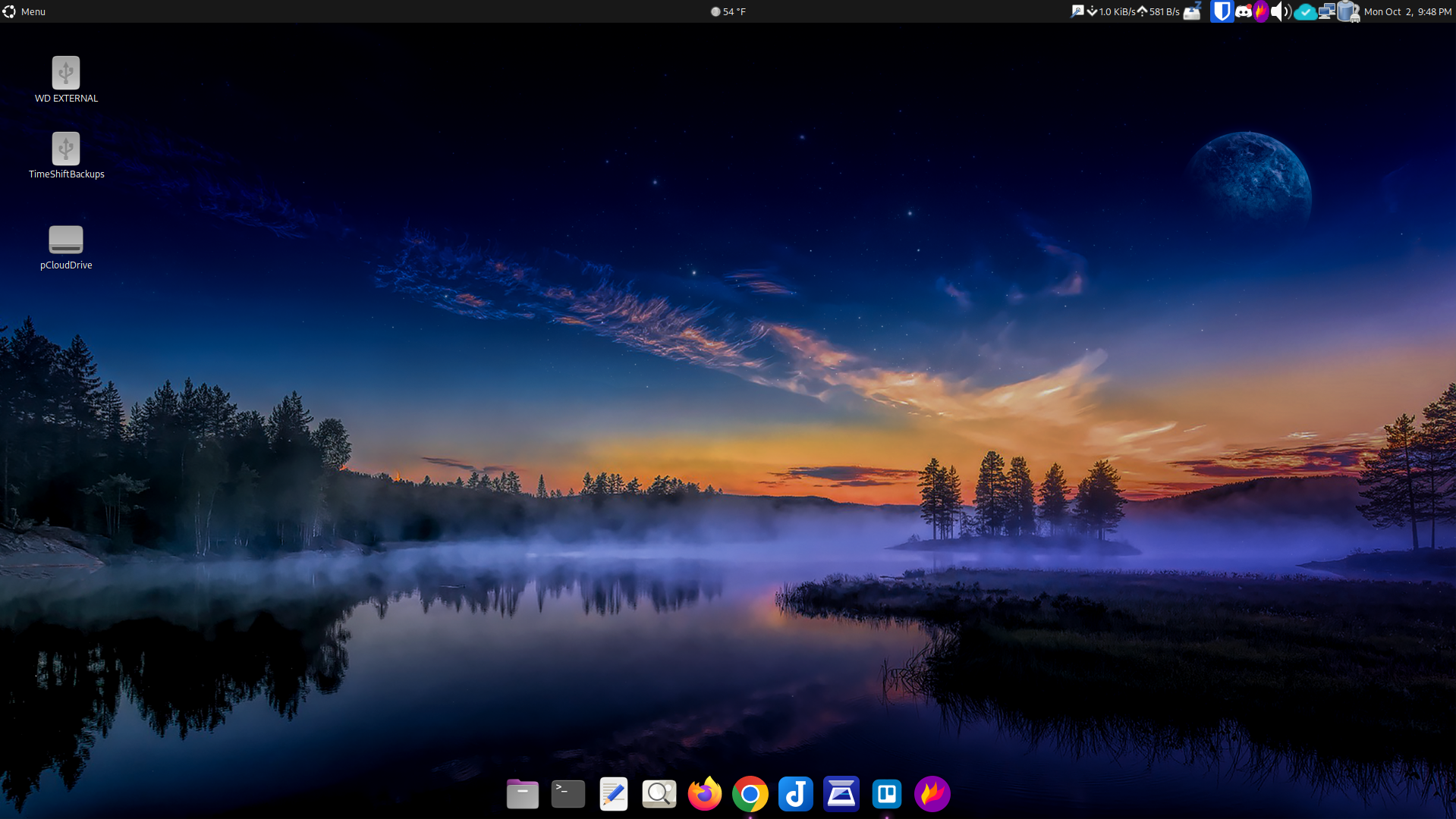
The Mate desktop is highly customizable, allowing users to tweak themes, icons, and applet placements. Users can personalize the desktop to match their preferences and workflow, making it a versatile choice for many users. As seen in the image below, I have replaced the bottom panel with the plank dock, creating a more Mac-like appearance. I also swapped the default Mate theme with Yaru-magenta-dark.
Performance and Speed

One of the standout features of the Mate desktop environment is its efficiency. It is well-optimized for performance, making it an excellent choice for modern and older hardware. Debian 12 with the Mate desktop runs smoothly, even on systems with limited resources, ensuring a snappy and responsive user experience.

Software and Applications

Debian 12, in combination with the Mate desktop, provides a comprehensive set of pre-installed applications for everyday use, including a web browser, office suite, file manager, email client, and more. Users can quickly expand the software repository to access a vast selection of additional software and packages through Debian’s package management system.

Security and Stability

Debian has a long-standing reputation for stability and security. Debian 12 is no exception, providing users with a robust and secure foundation. The Debian community addresses security vulnerabilities promptly, ensuring a safe computing environment for all users.

Conclusion

Debian 12 with the Mate desktop is a winning combination that brings together the best of both worlds: the stability and security of Debian and the user-friendly, efficient interface of the Mate desktop environment. Whether you’re a seasoned Linux user or a newcomer, Debian 12 with Mate offers a satisfying and enjoyable computing experience. Its blend of performance, customization, and security make it a top choice in the Linux world.
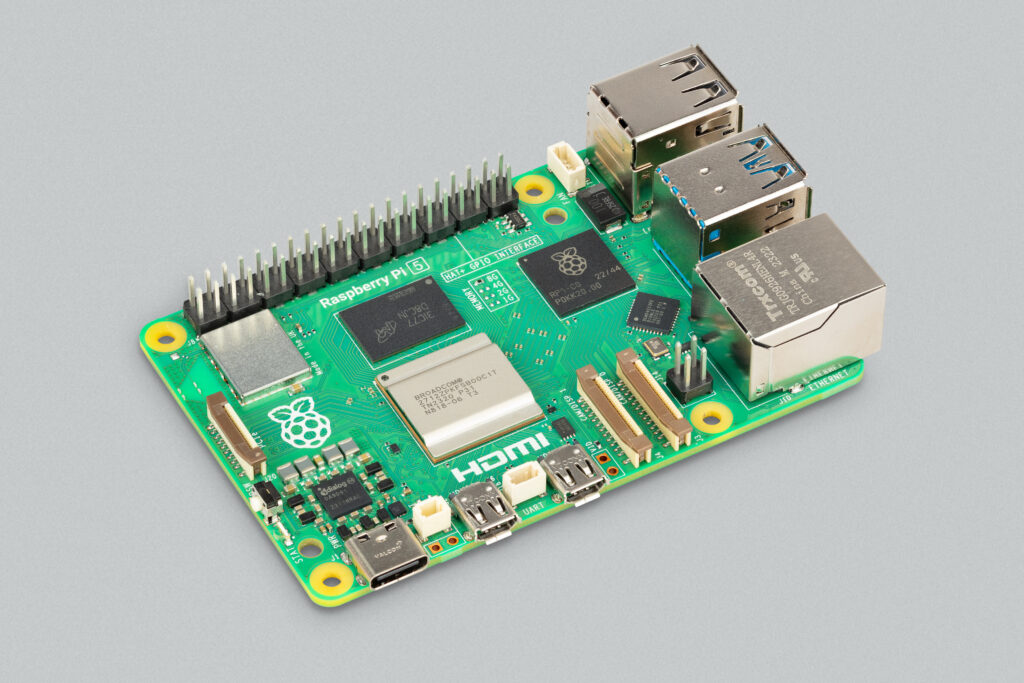

The Raspberry Pi 5: Redefining Innovation and Performance in the World of Single-Board Computers

The Raspberry Pi Foundation, the pioneer in affordable and accessible computing solutions, proudly announces the release of Raspberry Pi 5, the next evolution in their highly acclaimed series of single-board computers.

Building on the success of its predecessors, Raspberry Pi 5 offers a leap in performance, versatility, and energy efficiency, setting new standards for enthusiasts, developers, and educators alike. With its powerful features and affordability, the Raspberry Pi 5 continues to revolutionize the computing world.

Key Features of Raspberry Pi 5:

  1. Enhanced Performance: A cutting-edge Broadcom BCM2712 2.4GHz quad-core 64-bit Arm Cortex-A76 processor powers the Raspberry Pi 5, significantly boosting performance, enabling smoother multitasking and faster data processing.
  2. Increased RAM Performance: Equipped with the same amount of RAM as the Pi 4, Raspberry Pi 5 LPDDR4X RAM will give a 34% boost in performance.
  3. High-speed Connectivity: Raspberry Pi 5 supports faster networking speeds, including Gigabit Ethernet with PoE+ and Wi-Fi 5 support to provide enhanced connectivity for seamless online activities.
  4. Expanded Storage Options: Users can now store and access their data faster and more efficiently than ever with multiple storage options, including support for NVMe SSDs.
  5. Improved Graphics Performance: The Raspberry Pi 5’s upgraded GPU capabilities offer improved graphics performance for an enhanced visual experience.
  6. Enhanced I/O and Connectivity: Raspberry Pi 5 includes a wide range of I/O options, including USB 3.0 ports, HDMI, and more, providing users with increased flexibility and versatility in their projects.
  7. Energy Efficiency: Designed to be energy-efficient, Raspberry Pi 5 helps reduce power consumption while delivering exceptional performance, making it environmentally friendly and cost-effective.

Availability and Pricing:

Units are available to pre-order at authorized resellers and will be available for purchase by the end of October. Pricing will begin at $60.00 for the 4 GB model, and $80 for the 8GB model. For more information about Raspberry Pi 5 and its features, visit the official Raspberry Pi website atย http://www.raspberrypi.org.

Joplin, The Open-Source Alternative To Proprietary Note-Taking Apps like Evernote & Obsidian

Note-taking and organization have become essential aspects of both personal and professional life. With abundant note-taking apps available, finding the perfect one can be overwhelming. Enter Joplin โ€“ a free, open-source note-taking app designed to help users capture their thoughts, manage to-do lists, and stay organized. In this review, I will explore the features and functionality of Joplin and show why it’s an excellent choice for anyone seeking an open-source note-taking solution.

Founded by Laurent Cozic in 2017, Joplin is an open-source note-taking app with end-to-end encryption that aims to replace Evernote. Joplin has several plugins enabling you to import data from almost anywhere, making it convenient if you’re looking to switch from Evernote or Microsoft OneNote. Below is a list of features that make Joplin a great note-taking alternative.

Cross-Platform Accessibility

One of Joplin’s strengths is its cross-platform compatibility. Available for Windows, MacOS, Linux, Android, and iOS, Joplin allows users to sync their notes across all their devices. This flexibility ensures users can access and edit their notes regardless of their device. Joplin also offers various ways for you to sync your notes across devices. Introduced in 2021, Joplin Cloud allows you to synchronize your notes automatically to all your devices while supporting the project’s development.

Markdown Support

Joplin employs Markdown, a lightweight markup language, for formatting text. Markdown lets users style notes easily while maintaining a clean and straightforward interface. Markdown’s intuitive syntax is especially beneficial for those accustomed to writing in plain text. Furthermore, saving your files in Markdown means you can open your notes with any text editor. The app’s live preview feature lets users see the formatted output as they write, enhancing the editing experience.

End-to-End Encryption

Privacy and security are paramount in today’s digital landscape. Joplin addresses these concerns by offering end-to-end encryption, meaning only the user can access and decipher their notes, ensuring sensitive information remains confidential and protected from unauthorized access.

Rich Feature Set

Joplin boasts a comprehensive set of features to cater to various needs. Users can create notebooks to categorize their notes, add tags for easy organization, and attach files and images to their notes. Additionally, the app supports to-do lists, making it an effective tool for task management.

Powerful Search and Organization

Joplin’s powerful search capabilities enable you to find your notes effortlessly. The app allows users to search for specific words or phrases, making it easy to locate information quickly. Furthermore, Joplin enables you to organize notes hierarchically, creating a logical structure that suits individual preferences and workflows.

Community-Driven Development

Being open-source, Joplin encourages community participation and contributions. This collaborative approach means the app continually evolves, benefiting from the insights and expertise of a diverse group of users and developers. Community feedback helps identify bugs, suggest enhancements, and shape the app’s future direction.

Conclusion

Joplin is a reliable and efficient note-taking app offering various features to enhance productivity and organization. Its cross-platform accessibility, Markdown support, robust security measures, rich feature set, and active community involvement make it a top choice for anyone seeking a versatile note-taking solution. Embrace Joplin and streamline your thoughts and ideas effortlessly.

Day #3 of Fedora Silverblue


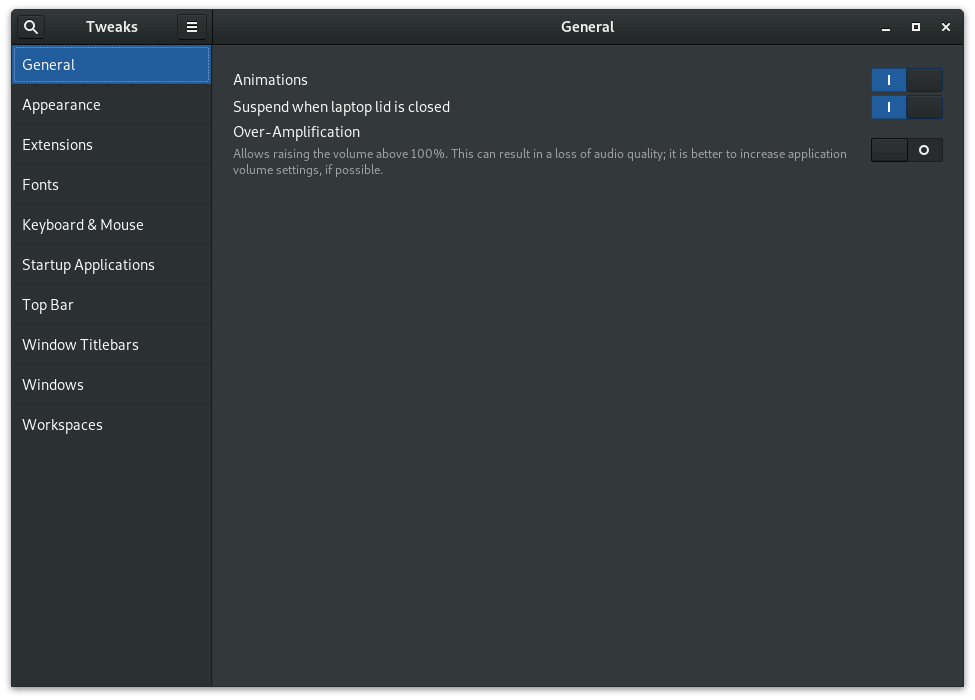
By the third day of using Fedora Silverblue, I already discovered it wasn’t as easy to customize Gnome as in Fedora Workstation, or any other distro with a Gnome Desktop Environment. No matter what desktop environment I’m running, the first thing I always do is install a dark theme, either Adwaita-Dark, Arc Dark, or Greybird Dark, and the second thing I do is install papirus icon. With Gnome, you need to install Gnome Tweaks, if it is not already installed by default. With Fedora Workstation it’s just a simple sudo dnf install gnome-tweaks papirus-icon-theme, but with Silverblue instilling these apps requires you to use rpm-ostree instead of dnf.

Once installed, I was able to customize Gnome the way I like it! I’m still installing apps on my laptop, but so far I’m linking Silverblue so much I’ve installed it on a second laptop. Before you go thinking I’ve already made up my mind, I doubt it will stay on the second laptop long since Pop os 21.04 beta was just released, and I’m very excited to check out Cosmic!

30 Days of Fedora 34 Silverblue

The night before last I decided to install Fedora 34 Silverblue on my Dell XPS12. What drew my attention to it was an article I read where someone was saying that Silverblue was very quick to load and run on his older, low-powered laptop.

I thought my XPS12 would be a perfect test machine. The laptop is about 10 years old with an Intel i7 3517u processor, 8 GB of ram, and 128 GB SSD. The machine came preloaded with Windows 8. My wife used the laptop for work but stopped after she lost the power adapter. I found the PC just lying around, and proceeded to order a new adapter on Amazon for $25.00, and began using it to test various Linux distros. When not testing different distros, I usually only use XFCE or LXDE as my desktop environment due to Gnome and even KDE being a little too much for it to handle.

For anyone that says “KDE is now lighter than XFCE” yes, KDE uses less ram, but it requires MUCH more CPU power than XFCE. I’ve compared to two desktops on older PCS and have always run into problems where KDE required just a little more CPU power than the devices had, while XFCE performed nicely. With that said, since I use Pop OS on my main computers, I’ve come to really enjoy Gnome and would like to find a way to run it on my little XPS12. For me, my XPS12 is the perfect size PC to have when on the go.

Another reason for me wanting to try Silverblue is the idea of the base OS being immutable, it can not be changed, and applications are primarily installed via Flatpak. Having an unchanging base OS enables Silverblue to be more stable but also having the ability to roll back to a previous version if an update does go wrong. Furthermore, I am a huge fan of Flatpaks, so the idea of possibly having an OS entirely using Flatpak applications really intrigues me! I’ve always wanted to try running a Linux distro with just Flatpaks but was never able to as I did not have the patience to uninstalls the default applications loaded on the system.

As I installed Silverblue on my laptop, I could see managing it would not be entirely the same and standard Fedora Workstation. Questions immediately started popping up like “Do I still need to install RPM Fusion?” and “How do I change the default theme from light to dark?”Instead of immediately giving up and installing another OS, I decided to make myself use Silverblue for 30 days, and write about my experience. At the end of 30 days, I’ll explain why I’m keeping Silverblue on my system, or why I decided to try another Linux Distro

Here’s to 30 days of Silverblue!